
Should You Upgrade Your Laptop RAM in 2026?
Learn how to diagnose memory pressure, when a RAM upgrade helps, when it wastes money, and how to choose compatible memory for your laptop.
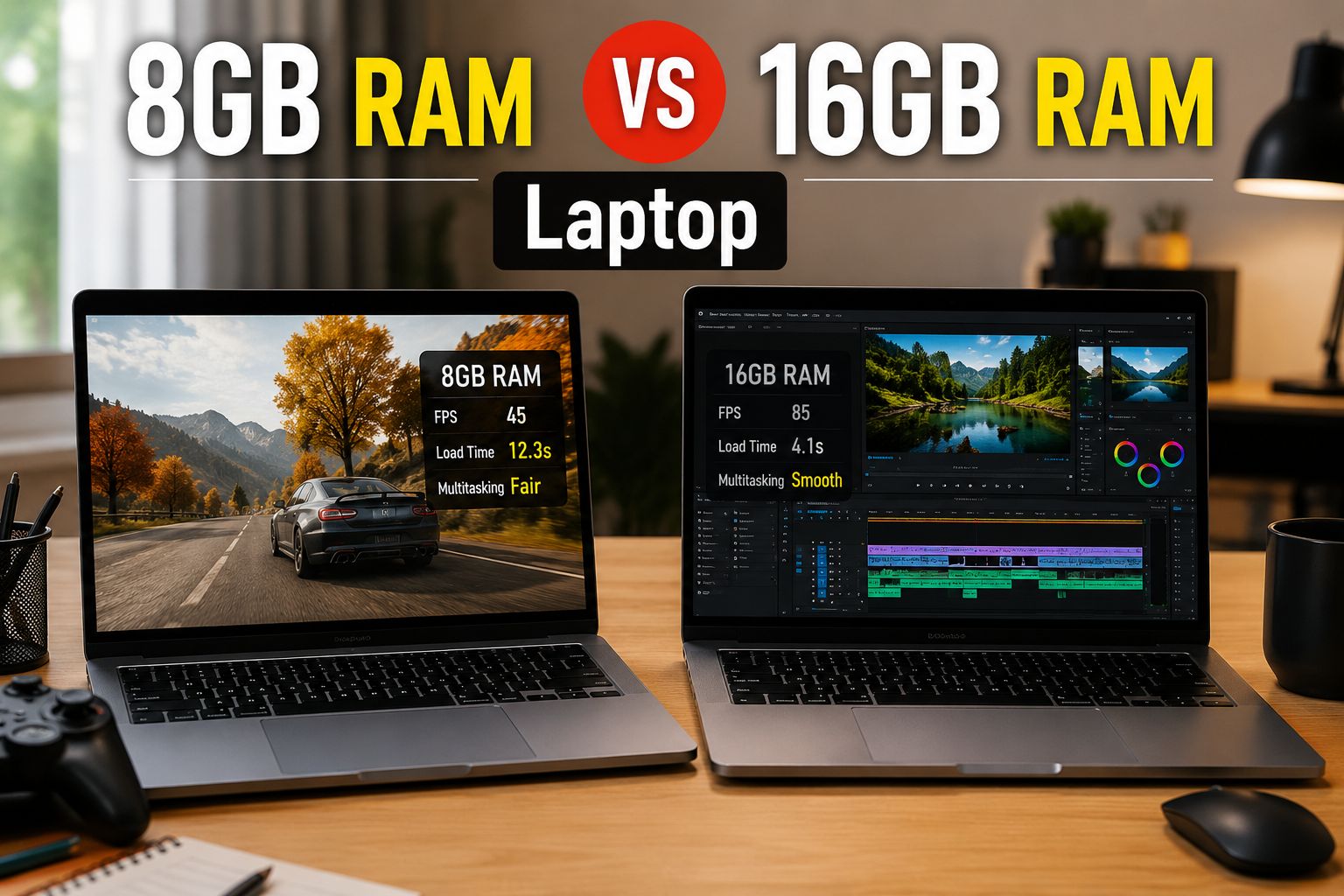
Should You Upgrade Your Laptop RAM in 2026?
When a laptop slows down, the first assumption is often that it needs more RAM. Sometimes that is true, and a memory upgrade is the best money you can spend. Other times, the real bottleneck is the CPU or storage, and new RAM wastes money. This guide shows you how to diagnose memory pressure, when an upgrade makes sense, when it does not, and how to buy the right module.
Understanding RAM and Performance
RAM is your system's active workbench. It holds the apps, documents, and operating system threads you are using right now. Storage is the long-term warehouse. When the workbench fills up, the computer moves active data to the much slower storage through disk swapping, causing stutter. More RAM gives the system room to breathe, but only if memory is actually the constraint.
How to Diagnose Your Real Bottleneck
Do not guess. Use your operating system's built-in monitor while the laptop is struggling.
- Open Task Manager on Windows with Ctrl + Shift + Esc, or Activity Monitor on macOS.
- Go to the Performance or Memory tab.
- Run your normal workload until the system feels sluggish, then read the numbers.
What the Numbers Mean
- Consistently above 85 percent utilization (Windows) or yellow/red memory pressure (Mac): RAM is your bottleneck. An upgrade will feel like a new computer.
- Below 70 percent utilization: RAM is not the problem. Check CPU and disk metrics instead.
If CPU usage hits 100 percent, your processor is the limit. If disk activity is maxed, storage may be the issue.
When You Should Upgrade RAM
Certain usage patterns reliably overwhelm smaller memory configurations.
Tab Hoarders and Multitaskers
Modern browsers are memory hungry. Twenty open tabs plus office apps, chat, and music can overwhelm 8GB. Moving to 16GB eliminates constant swapping and stutter.
Creators, Developers, and Engineers
Virtual machines, video editing, CAD, and large datasets consume tens of gigabytes. For these workflows, 16GB is the minimum, and 32GB provides smoother performance.
Gamers
Modern games need sufficient RAM to load textures and assets. 8GB often causes texture pop-in and stutter. 16GB is the current comfortable standard for gaming.
When You Should Not Upgrade
Upgrading RAM helps only when you are memory-bound. In these cases, save your money.
Soldered RAM
Many laptops solder memory directly to the motherboard, especially MacBooks. If your RAM is soldered, it cannot be upgraded. Check your model's service manual or a teardown video before buying anything.
Hard Physical Limits
Even with removable RAM, motherboards have capacity limits. Installing more than the board supports wastes money, since only the supported amount will be used.
Low Utilization
If your usage stays below 70 percent, RAM is not your bottleneck. Invest in other upgrades or a new system instead.
How to Buy the Right RAM
Compatibility is critical. You cannot install arbitrary memory.
Match the Standards
- DDR generation: DDR4 and DDR5 are physically incompatible. You must match what your system uses.
- Clock speed: Installing faster RAM than your board supports results in downclocking, wasting money.
Use Compatibility Tools
Memory manufacturers offer free scanning tools that identify your exact laptop and recommend compatible modules, maximum capacity, and correct speed. Using these eliminates guesswork.
Latency Considerations
CAS latency measures delay before memory executes a command, with lower being better. For laptop upgrades, chasing the lowest latency is usually not worth the cost. Focus on capacity and correct speed first.
Dual-Channel vs Single-Channel Memory
Many laptops support dual-channel memory, which can significantly improve integrated graphics performance and overall responsiveness. If you have one stick installed, adding a matching second stick may boost performance even without increasing total capacity. Check your configuration and consider matched pairs when upgrading.
Installation and Safety Steps
If your RAM is removable, follow these steps carefully.
- Power off, unplug, and remove the battery if possible.
- Open the bottom panel using the correct screwdriver.
- Ground yourself to avoid static discharge.
- Release the old module and insert the new one at the correct angle.
- Secure the module and reassemble.
- Boot and verify the new capacity in system settings.
If you are uncomfortable opening the chassis, a technician can install it quickly.
Cost-Benefit Perspective
RAM upgrades are usually inexpensive compared to buying a new laptop. If your system is otherwise healthy and memory-bound, upgrading can extend its useful life by years. However, if multiple components are outdated, investing in a new system may be wiser.
Final Verdict
Upgrade your RAM if it is not soldered and your utilization consistently exceeds 85 percent. Otherwise, skip it and address the real bottleneck, whether that is the CPU, storage, or the whole system.
Frequently Asked Questions (FAQ)
How do I know if I need more RAM?
If memory utilization stays above 85 percent during normal use and the system stutters, you are memory-bound.
Can I upgrade RAM on any laptop?
No. Many laptops have soldered memory that cannot be changed. Check your model first.
Is 16GB enough in 2026?
For most users, yes. Gamers and creators may benefit from 32GB.
Does RAM speed matter more than capacity?
Capacity usually matters more for everyday performance. Match the supported speed and prioritize enough memory.
What happens if I install incompatible RAM?
The system may fail to boot or run unstably. Always verify compatibility before buying.
Should I upgrade RAM or buy a new laptop?
If memory is soldered or your CPU is the bottleneck, a new system may be the better investment.

Jabir Al Shaker
Founder and editor of StartsNest. Technology writer and digital marketing specialist with expertise in mobile technology, consumer electronics, and online business strategies.
View all articles by Jabir Al Shaker →More to read
Xiaomi 13 Lite Review: Exceptional Design Meets Unbeatable Camera
The Xiaomi 13 Lite combines a slim 171g design, a 120Hz AMOLED display, a flagship-grade 50MP camera, dual selfie cameras, and 67W fast charging into an appealing mid-range package.
Xiaomi 13 Ultra Review: What is so Ultra?
The Xiaomi 13 Ultra packs a 50MP 1-inch Leica camera, Snapdragon 8 Gen 2, a 6.73-inch LTPO OLED display, and a 5000mAh battery with 90W charging into a premium IP68 body. Here is whether it lives up to the hype.
Xiaomi 13T Review: New MidRange King?
The Xiaomi 13T brings a vegan leather design, 144Hz display, Dimensity 8200-Ultra performance, and Leica-tuned cameras to the mid-range. Here is whether it earns the mid-range crown.
Comments (0)
No comments yet. Be the first to share your thoughts!